
Palworld has taken the gaming world by storm, and even in 2026, I still see players raving about it like it's the second coming. I've been there since the early access days, and let me tell you, the game has come a long way. But one annoying gremlin that just won't stay dead for some players is motion blur. When Palworld first launched on PC and Xbox, the motion blur toggle was, to put it lightly, a hot mess. It claimed to turn off, but it didn't. That left players who suffer from motion sickness or who want every possible frame per second feeling like they'd drawn the short straw. I was in that boat too. Luckily, there's a workaround that's been a real lifesaver, and I'm going to break it down for you.
What's Actually Going On with Motion Blur?
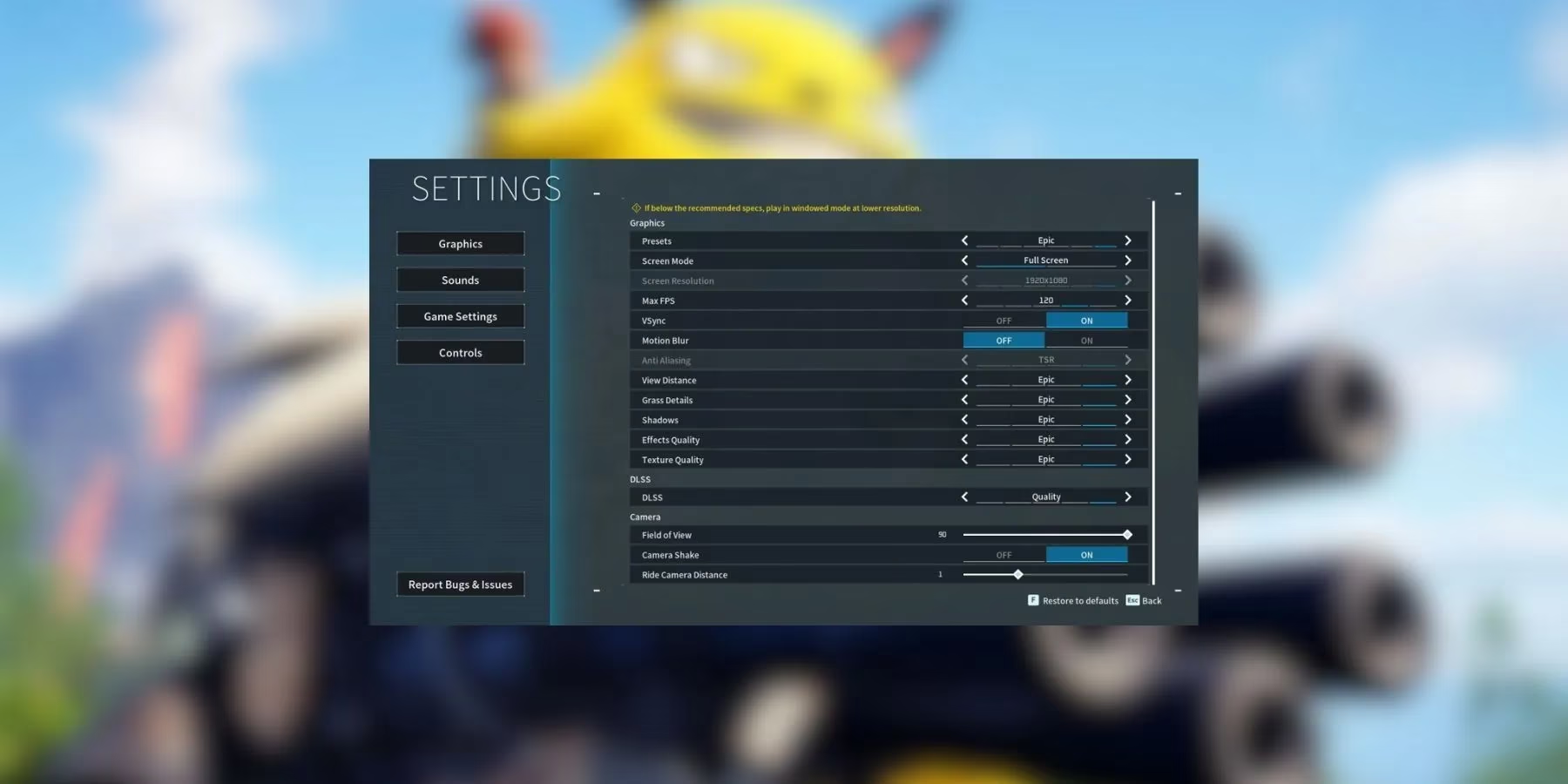
Motion blur can make gameplay feel cinematic, but if you're getting nauseous or chasing high FPS, it's about as welcome as a screen door on a submarine. From my experience, motion blur can smear frames together, which tanks perceived clarity and can make fast camera moves feel like a fever dream. If you're prone to simulator sickness, it's a one-way ticket to Queasy Town. For competitive players, every millisecond of input lag from unnecessary post-processing is a kick in the teeth. The in-game setting should ideally let you disable it through Settings > Graphics > Motion Blur, then apply the changes and get on with your day. The problem? On many builds, the setting is broken. It flips back on, or the game ignores your choice entirely. I've seen this happen on both PC and Xbox, and it's enough to make you want to pull your hair out.
The Official Steps (That Should Work)
If your version of Palworld is cooperating, here's how to turn off motion blur the normal way:
-
Access Settings from the main or pause menu.
-
Under Settings, select Graphics.
-
Locate the Motion Blur setting and disable it.
-
Exit Settings and make sure to apply the changed settings.
If that does the trick, you're golden. But if the setting keeps coming back like a bad rash, don't throw in the towel just yet.
The Tried-and-True Engine.ini Workaround
I've used this fix more times than I can count. It's not rocket science, but it does require a little bit of file tinkering. Here's exactly what I do:
-
Locate the Engine.ini file in the game's directory.
-
Right-click on the Engine.ini file and select Open.
-
Open the file using Notepad.
-
Scroll to the end of the file, making sure not to change any existing values.
-
Add a blank line if there isn't one already.
-
Add the following text:
[SystemSettings]

r.MotionBlur.Max=0

r.MotionBlurQuality=0

r.DefaultFeature.MotionBlur=0
- Save the file and set it to read-only.
Why does this work? The Engine.ini file lets you override certain graphics settings at the engine level. By setting those motion blur values to zero, you're effectively telling Unreal Engine to cut the blur out at the knees, no matter what the in-game menu claims. It's a blunt instrument, but it gets the job done.
Is It Safe?
Absolutely. I've done this on multiple machines without a hitch. If you're the cautious type, make a copy of the original file before editing. The worst-case scenario is the game ignores the lines and you're back to square one. Setting the file to read-only is key, because some games love to rewrite config files. If a future Palworld update changes the engine settings, you may need to remove the read-only flag, tweak the file again, and reapply the fix.
As of 2026, Pocketpair has shipped a mountain of patches. The in-game toggle now works for many players, but I still hear from folks on certain hardware or older game versions where the bug rears its ugly head. If you're one of the unlucky ones, this workaround remains worth its weight in gold. The issue has been raised on several forums and platforms, so concerned players can rest easy knowing Pocketpair is aware.
Here's a quick at-a-glance comparison:
| Method | Difficulty | Reliability |
|---|---|---|
| In-game toggle | Easy | Hit or miss |
| Engine.ini edit | Intermediate | Rock solid |
Final Thoughts
I've been in the trenches with Palworld, and let me tell you, nothing kills the vibe faster than motion blur you can't turn off. The fact that players have had to tinker with config files to fix a basic accessibility option is a bit of a facepalm, but the community has rallied. Pocketpair has been responsive, so I'm hopeful these growing pains will become a distant memory. Until then, keep this workaround in your back pocket. It's a silver bullet for motion blur woes, and it takes less than five minutes.
Comments